
安全区(Safe Area)
版本说明
本文档适用于 flutter-ohos 3.35.7 和 flutter-ohos 3.41.9 鸿蒙定制版。安全区(Safe Area)是跨平台开发中必须理解的核心概念,在鸿蒙设备上有其特殊性。
什么是安全区
安全区(Safe Area)是指屏幕上不被系统 UI 元素遮挡的区域。在这个区域内,你的应用内容可以安全地显示,不用担心被遮挡或误触。
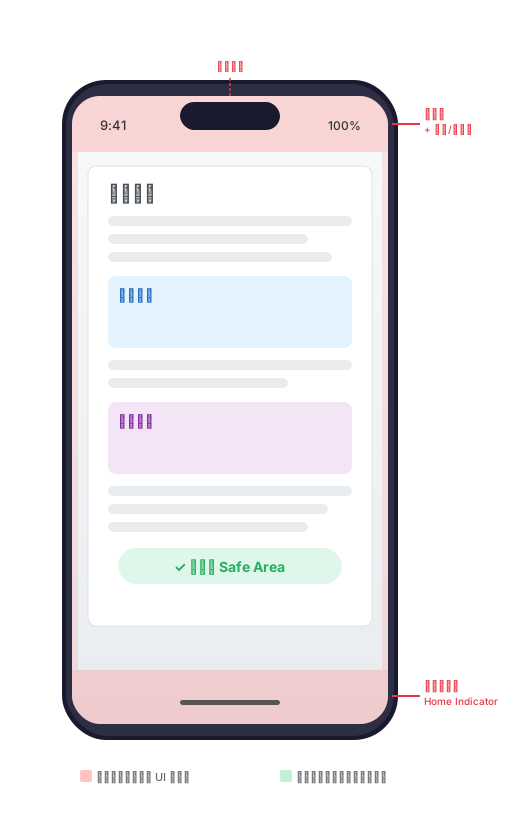
系统 UI 元素包括:
| 元素 | 说明 | 位置 |
|---|---|---|
| 状态栏 | 显示时间、信号、电量等 | 屏幕顶部 |
| 刘海/灵动岛 | 前置摄像头和传感器区域 | 屏幕顶部中央 |
| 智慧岛 | 鸿蒙部分机型的通知/交互区域 | 屏幕顶部中央 |
| 主页指示器 | 底部横条,用于返回桌面 | 屏幕底部 |
| 导航栏 | 三键导航或手势导航区域 | 屏幕底部 |
| 圆角屏幕 | 屏幕边缘的圆角裁切 | 屏幕四角 |
下图展示了屏幕上的不安全区域(红色)和安全区域(绿色):
为什么需要安全区
问题:内容被系统 UI 遮挡
如果你的应用内容从屏幕最边缘开始绘制,就会导致内容被系统 UI 元素遮挡:
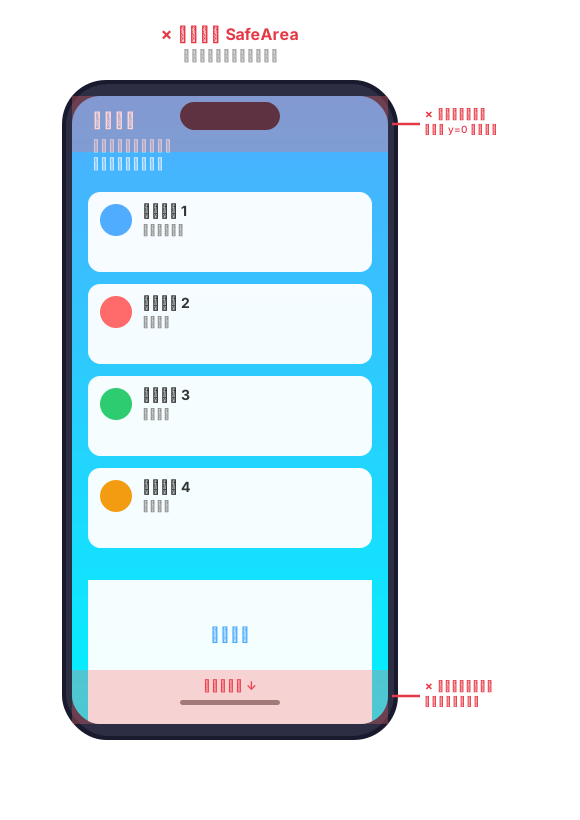
看,上方的文字被刘海区域遮挡,下方的按钮被主页指示器遮挡——用户既看不到完整内容,也无法点击按钮。
解决:使用 SafeArea
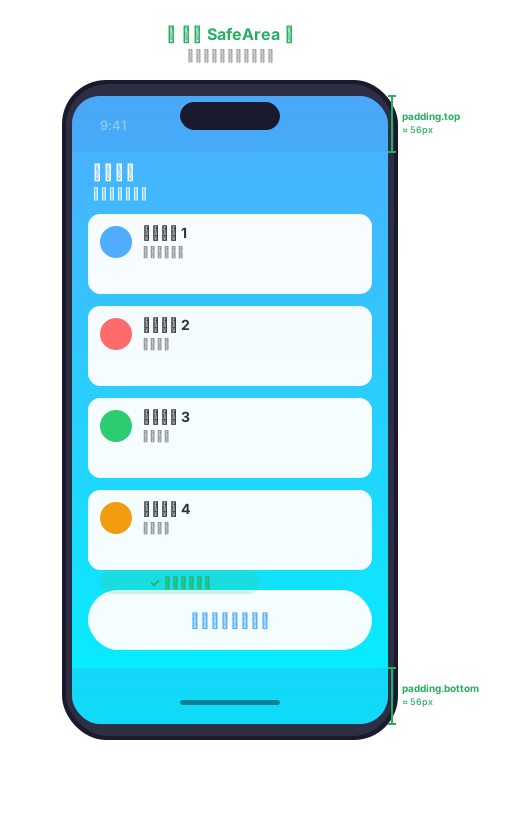
用 SafeArea 组件包裹内容后,内容会自动留出内边距,避开不安全区域:
安全区的工作原理
本质:就是加 Padding
SafeArea 的本质非常简单——它读取系统提供的安全区内边距,然后给你的内容加上对应的 Padding。
// SafeArea 的简化原理(实际源码更复杂)
Widget build(BuildContext context) {
  final padding = MediaQuery.of(context).padding; // 从系统获取安全区内边距
  return Padding(
    padding: EdgeInsets.only(
      top: padding.top,       // 顶部留出状态栏高度
      bottom: padding.bottom,  // 底部留出主页指示器高度
      left: padding.left,      // 左侧(横屏时可能有值)
      right: padding.right,    // 右侧(横屏时可能有值)
    ),
    child: widget.child,
  );
}
MediaQuery.padding 详解
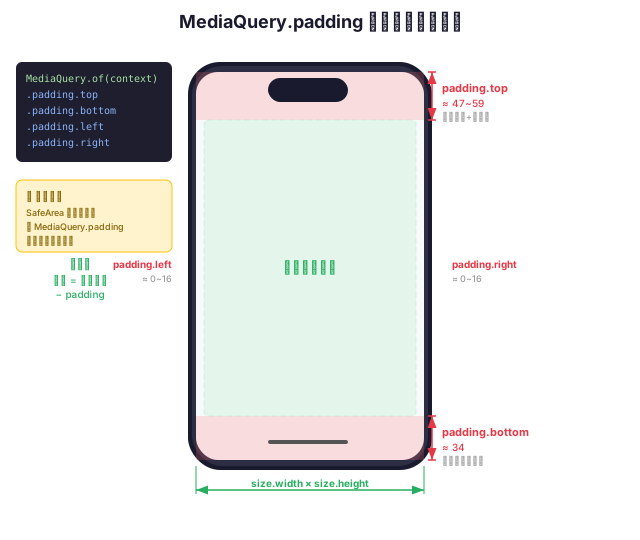
安全区内边距来自 MediaQuery.padding,下图展示了各个方向的内边距值:
关键理解
- 竖屏时:
padding.left和padding.right通常为 0(除非曲面屏边缘) - 横屏时:
padding.left或padding.right会有值(刘海/灵动岛在侧边) - 不同设备的
padding.top和padding.bottom值不同,不要硬编码
SafeArea 组件
构造函数
SafeArea({
  Key? key,
  bool left = true,           // 是否避开左侧不安全区域
  bool top = true,            // 是否避开顶部不安全区域
  bool right = true,          // 是否避开右侧不安全区域
  bool bottom = true,         // 是否避开底部不安全区域
  EdgeInsets minimum = EdgeInsets.zero,  // 额外的最小内边距
  bool maintainBottomViewPadding = false, // 是否使用 viewPadding 替代 padding
  Widget? child,              // 子组件
})
属性速查
| 属性 | 类型 | 默认值 | 说明 |
|---|---|---|---|
left | bool | true | 是否处理左侧安全区 |
top | bool | true | 是否处理顶部安全区 |
right | bool | true | 是否处理右侧安全区 |
bottom | bool | true | 是否处理底部安全区 |
minimum | EdgeInsets | EdgeInsets.zero | 额外最小内边距(与安全区取较大值) |
maintainBottomViewPadding | bool | false | 底部使用 viewPadding(包含键盘区域) |
基础用法
1. 最简单的用法
Scaffold(
  body: SafeArea(
    child: YourContent(),
  ),
)
只需要一行代码,内容就自动避开所有不安全区域。
2. 只避开顶部
如果你的页面有底部导航栏(Scaffold 自动处理),只需要避开顶部:
SafeArea(
  bottom: false,  // 底部不处理,由 Scaffold 的 BottomNavigationBar 处理
  child: YourContent(),
)
3. 只避开底部
全屏地图或相机场景,顶部内容需要延伸到状态栏后面,但底部按钮需要避开主页指示器:
SafeArea(
  top: false,  // 顶部不处理,让背景延伸到状态栏后面
  child: Stack(
    children: [
      MapWidget(),           // 全屏地图,延伸到状态栏后面
      Positioned(
        bottom: 0,
        left: 0,
        right: 0,
        child: SafeArea(     // 嵌套的 SafeArea,只保护底部按钮
          top: false,
          child: MapControls(),  // 底部控制按钮,避开主页指示器
        ),
      ),
    ],
  ),
)
4. 添加额外内边距
minimum 参数确保安全区内边距至少是你指定的值:
SafeArea(
  minimum: const EdgeInsets.symmetric(horizontal: 16),  // 至少 16px 水平内边距
  child: YourContent(),
)
// 如果安全区内边距 > 16,用安全区的值
// 如果安全区内边距 < 16,用 16
Scaffold 与安全区的关系
很多初学者会疑惑:「Scaffold 不是已经自动处理安全区了吗?为什么还要用 SafeArea?」
答案是:Scaffold 只自动处理 AppBar 和 BottomNavigationBar 的安全区,body 中的内容不会自动避开。
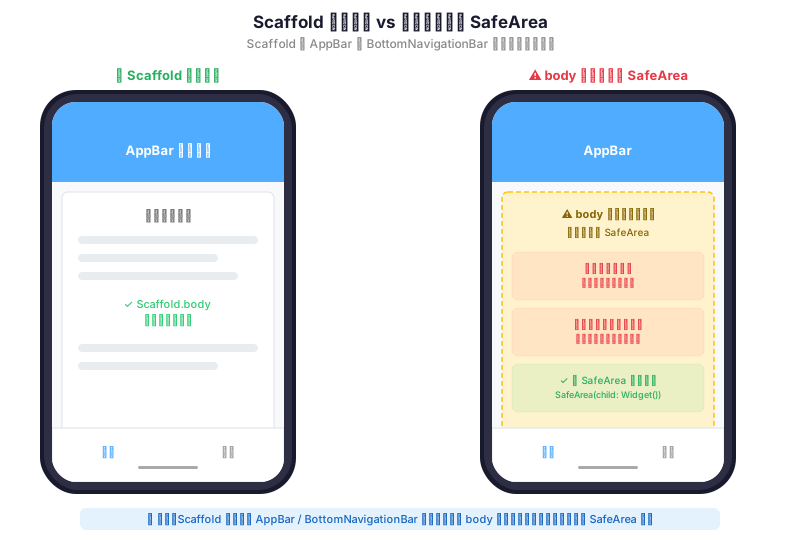
// Scaffold 会自动处理这些区域的安全区:
Scaffold(
  appBar: AppBar(...),                    // ✅ 自动避开顶部状态栏
  bottomNavigationBar: BottomNavigationBar(...), // ✅ 自动避开底部指示器
  body: Center(
    child: Text('你好'),  // ⚠ 这个文字不会被自动保护!
  ),
)

// 如果 body 内容需要全屏显示(如列表滚动到顶部),需要手动加 SafeArea
Scaffold(
  appBar: AppBar(...),
  body: SafeArea(           // 手动保护 body 内容
    child: ListView(...),
  ),
)
重要
Scaffold 的 body 在没有 appBar 时,内容会从屏幕最顶部开始!此时必须用 SafeArea 包裹。
不同平台的安全区差异
不同平台的设备有不同的不安全区域,SafeArea 会根据平台自动适配:
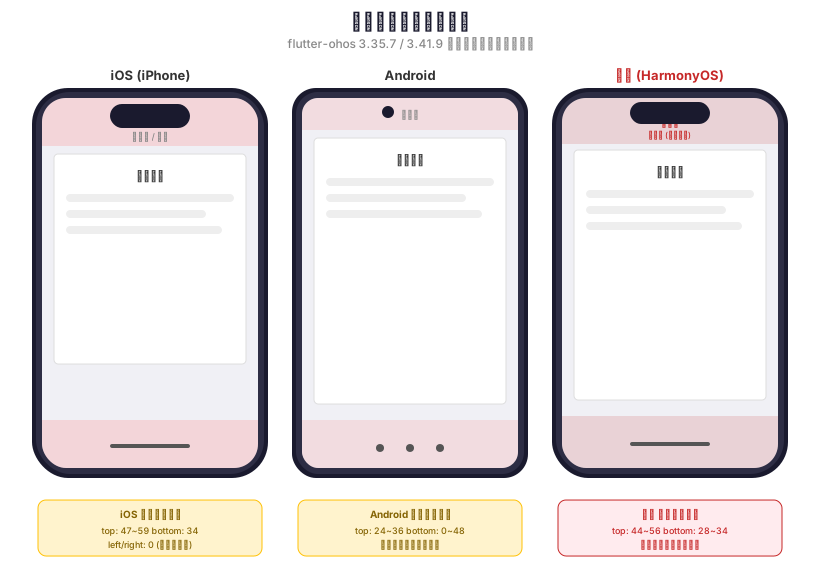
| 平台 | 顶部不安全区域 | 底部不安全区域 | 特殊注意 |
|---|---|---|---|
| iOS | 状态栏 + 灵动岛/刘海 (47~59px) | 主页指示器 (34px) | 横屏时左右也有内边距 |
| Android | 状态栏 (24~36px) | 导航栏 (0~48px) | 部分机型有挖孔摄像头 |
| 鸿蒙 | 状态栏 + 智慧岛 (44~56px) | 手势指示器 (28~34px) | 部分机型有智慧岛 |
鸿蒙特别注意
在 flutter-ohos 3.35.7 / 3.41.9 中,鸿蒙设备的安全区数据由系统自动提供,SafeArea 和 MediaQuery.padding 可以正确获取鸿蒙设备的安全区域信息。但需要注意:
- 部分鸿蒙机型有智慧岛功能,会额外占用顶部空间
- 鸿蒙设备的底部手势区域高度可能与 iOS/Android 不同
- 建议在鸿蒙设备上实际测试,确保安全区适配效果正确
进阶用法
1. 全屏背景 + 安全区内容
最常见的场景:背景图片延伸到全屏,但文字内容在安全区内。
Stack(
  children: [
    // 全屏背景 - 不用 SafeArea
    Positioned.fill(
      child: Image.asset(
        'assets/background.jpg',
        fit: BoxFit.cover,
      ),
    ),
    // 安全内容 - 用 SafeArea
    SafeArea(
      child: Column(
        children: [
          const Text('标题', style: TextStyle(fontSize: 24)),
          const SizedBox(height: 16),
          const Text('内容在安全区内,不会被遮挡'),
        ],
      ),
    ),
  ],
)
2. 部分安全区 + 部分延伸
Column(
  children: [
    // 顶部横幅 - 延伸到状态栏后面
    Container(
      height: 200,
      color: Colors.blue,
      padding: EdgeInsets.only(
        top: MediaQuery.of(context).padding.top, // 手动添加顶部内边距
      ),
      child: const Center(
        child: Text('横幅', style: TextStyle(color: Colors.white, fontSize: 24)),
      ),
    ),
    // 列表内容 - 在安全区内
    Expanded(
      child: SafeArea(
        top: false, // 顶部已经处理过了
        child: ListView(
          children: const [
            ListTile(title: Text('项目 1')),
            ListTile(title: Text('项目 2')),
          ],
        ),
      ),
    ),
  ],
)
3. SliverAppBar 中的安全区
在 CustomScrollView 中使用 SliverAppBar 时,SliverAppBar 会自动处理顶部安全区,但 body 内容需要注意:
CustomScrollView(
  slivers: [
    SliverAppBar(
      expandedHeight: 200,
      pinned: true,
      flexibleSpace: FlexibleSpaceBar(
        title: const Text('标题'),
        background: Container(color: Colors.blue),
      ),
    ),
    // SliverAppBar 已经处理了顶部安全区
    // 但如果内容滚动到顶部后需要安全区保护,可以加 SliverPadding
    SliverPadding(
      padding: MediaQuery.of(context).removePadding(
        removeTop: true, // 顶部已由 SliverAppBar 处理
        removeBottom: false,
        context: context,
      ).padding,
      sliver: SliverList(
        delegate: SliverChildBuilderDelegate(
          (context, index) => ListTile(title: Text('项目 $index')),
          childCount: 20,
        ),
      ),
    ),
  ],
)
4. 横屏适配
横屏时,安全区可能出现在左侧或右侧(取决于刘海/摄像头在哪一侧):
// 横屏时左右也会有安全区内边距
SafeArea(
  child: Row(
    children: [
      Expanded(child: LeftPanel()),
      Expanded(child: RightPanel()),
    ],
  ),
)
5. 使用 SliverSafeArea
在 CustomScrollView 中,可以使用 SliverSafeArea 来保护 sliver 子组件:
CustomScrollView(
  slivers: [
    const SliverSafeArea(
      sliver: SliverList(
        delegate: SliverChildBuilderDelegate(
          (context, index) => ListTile(title: Text('项目 $index')),
          childCount: 20,
        ),
      ),
    ),
  ],
)
padding vs viewPadding vs viewInsets
理解这三个概念对处理安全区非常重要:
| 属性 | 说明 | 典型值 |
|---|---|---|
padding | 被永久性系统 UI 遮挡的区域(状态栏、主页指示器等) | top: 47~59, bottom: 34 |
viewPadding | 与 padding 相同,但不受键盘影响(键盘弹出时值不变) | top: 47~59, bottom: 34 |
viewInsets | 被临时性系统 UI 遮挡的区域(主要是软键盘) | 键盘弹出时 bottom: 200+ |
// 关键区别:
final mq = MediaQuery.of(context);

// 键盘未弹出时:
mq.padding.bottom         // 34(主页指示器)
mq.viewPadding.bottom     // 34(同上)
mq.viewInsets.bottom      // 0

// 键盘弹出时:
mq.padding.bottom         // 0!padding 会被键盘"挤掉"
mq.viewPadding.bottom     // 34(不变)
mq.viewInsets.bottom      // 336(键盘高度)
常见误区
SafeArea 默认使用 MediaQuery.padding。当键盘弹出时,padding.bottom 会变为 0,因为键盘已经覆盖了主页指示器区域。
如果你需要在键盘弹出时仍然保持底部安全区(例如侧边栏场景),使用:
SafeArea(
  maintainBottomViewPadding: true,  // 使用 viewPadding 替代 padding
  child: YourContent(),
)
完整示例
全功能安全区示例
import 'package:flutter/material.dart';

class SafeAreaDemo extends StatelessWidget {
  const SafeAreaDemo({super.key});

  @override
  Widget build(BuildContext context) {
    return Scaffold(
      // 没有 appBar,body 需要自己处理安全区
      body: SafeArea(
        child: Column(
          children: [
            // 顶部导航(自定义)
            Container(
              padding: const EdgeInsets.symmetric(horizontal: 16, vertical: 8),
              color: Colors.blue,
              child: const Row(
                children: [
                  Icon(Icons.arrow_back, color: Colors.white),
                  SizedBox(width: 16),
                  Text(
                    '安全区示例',
                    style: TextStyle(
                      color: Colors.white,
                      fontSize: 18,
                      fontWeight: FontWeight.bold,
                    ),
                  ),
                ],
              ),
            ),
            // 主内容
            Expanded(
              child: ListView(
                padding: const EdgeInsets.all(16),
                children: [
                  _buildInfoCard(context),
                  const SizedBox(height: 16),
                  _buildPaddingInfo(context),
                ],
              ),
            ),
            // 底部按钮
            Container(
              padding: const EdgeInsets.all(16),
              child: ElevatedButton(
                onPressed: () {},
                style: ElevatedButton.styleFrom(
                  minimumSize: const Size(double.infinity, 48),
                ),
                child: const Text('底部按钮'),
              ),
            ),
          ],
        ),
      ),
    );
  }

  Widget _buildInfoCard(BuildContext context) {
    final padding = MediaQuery.of(context).padding;
    return Card(
      child: Padding(
        padding: const EdgeInsets.all(16),
        child: Column(
          crossAxisAlignment: CrossAxisAlignment.start,
          children: [
            const Text('当前安全区信息', style: TextStyle(fontSize: 16, fontWeight: FontWeight.bold)),
            const SizedBox(height: 8),
            Text('顶部内边距: ${padding.top.toStringAsFixed(1)}'),
            Text('底部内边距: ${padding.bottom.toStringAsFixed(1)}'),
            Text('左侧内边距: ${padding.left.toStringAsFixed(1)}'),
            Text('右侧内边距: ${padding.right.toStringAsFixed(1)}'),
          ],
        ),
      ),
    );
  }

  Widget _buildPaddingInfo(BuildContext context) {
    final mq = MediaQuery.of(context);
    return Card(
      child: Padding(
        padding: const EdgeInsets.all(16),
        child: Column(
          crossAxisAlignment: CrossAxisAlignment.start,
          children: [
            const Text('padding vs viewPadding vs viewInsets', style: TextStyle(fontSize: 14, fontWeight: FontWeight.bold)),
            const SizedBox(height: 8),
            Text('padding.bottom: ${mq.padding.bottom.toStringAsFixed(1)}'),
            Text('viewPadding.bottom: ${mq.viewPadding.bottom.toStringAsFixed(1)}'),
            Text('viewInsets.bottom: ${mq.viewInsets.bottom.toStringAsFixed(1)}'),
            const SizedBox(height: 8),
            const Text('(弹出键盘后 viewInsets.bottom 会变化)', style: TextStyle(fontSize: 12, color: Colors.grey)),
          ],
        ),
      ),
    );
  }
}
常见问题
1. 什么时候必须用 SafeArea?
以下情况必须使用 SafeArea:
- Scaffold 没有 AppBar 时,body 内容需要从顶部安全开始
- Scaffold 没有 BottomNavigationBar 时,底部内容需要避开主页指示器
- 使用自定义顶部/底部导航栏时
- 全屏页面(如地图、相机、视频播放器)中有需要保护的内容
以下情况不需要(或已自动处理):
- Scaffold 有 AppBar 时——AppBar 自动处理顶部安全区
- Scaffold 有 BottomNavigationBar 时——底部导航栏自动处理底部安全区
- Dialog、BottomSheet——系统自动处理安全区
2. SafeArea 应该放在哪里?
// ✅ 推荐:包在 body 内容外层
Scaffold(
  body: SafeArea(
    child: YourContent(),
  ),
)

// ❌ 不推荐:包在 Scaffold 外面(会导致 AppBar 也被缩小)
SafeArea(
  child: Scaffold(
    appBar: AppBar(...),  // AppBar 自己会处理安全区,不需要 SafeArea
    body: YourContent(),
  ),
)
3. 键盘弹出时底部内容被遮挡?
// 使用 maintainBottomViewPadding 保持底部安全区
SafeArea(
  maintainBottomViewPadding: true,
  child: YourContent(),
)

// 或者让 Scaffold 自动处理键盘
Scaffold(
  resizeToAvoidBottomInset: true,  // 默认就是 true
  body: SafeArea(child: YourContent()),
)
4. 鸿蒙设备上安全区值不正确?
在 flutter-ohos 3.35.7 / 3.41.9 中,如果遇到安全区值异常:
// 1. 先打印当前安全区值,排查问题
final padding = MediaQuery.of(context).padding;
print('top: ${padding.top}, bottom: ${padding.bottom}');

// 2. 如果值异常,可以手动设置
MediaQuery(
  data: MediaQuery.of(context).copyWith(
    padding: const EdgeInsets.only(top: 56, bottom: 34), // 手动覆盖
  ),
  child: SafeArea(child: YourContent()),
)
5. 状态栏透明/沉浸式时如何处理?
// 让状态栏透明,但内容仍在安全区内
SystemChrome.setSystemUIOverlayStyle(
  const SystemUiOverlayStyle(
    statusBarColor: Colors.transparent,      // 状态栏透明
    statusBarIconBrightness: Brightness.dark, // 深色图标
  ),
);

// SafeArea 仍然生效,内容不会跑到状态栏后面
Scaffold(
  extendBodyBehindAppBar: true, // body 延伸到 AppBar 后面
  appBar: AppBar(
    backgroundColor: Colors.transparent, // AppBar 也透明
    elevation: 0,
  ),
  body: SafeArea(
    top: false, // AppBar 区域已经处理了
    child: YourContent(),
  ),
)
速查表
| 场景 | 方案 |
|---|---|
| 基本页面 | SafeArea(child: content) |
| 有 AppBar 的页面 | AppBar 自动处理,body 不需要额外 SafeArea |
| 全屏背景 + 安全内容 | Stack + 背景 + SafeArea |
| 只保护顶部 | SafeArea(bottom: false, ...) |
| 只保护底部 | SafeArea(top: false, ...) |
| 额外内边距 | SafeArea(minimum: EdgeInsets.all(16), ...) |
| 键盘弹出时保持底部 | SafeArea(maintainBottomViewPadding: true, ...) |
| CustomScrollView | SliverSafeArea(sliver: ...) |
| 手动获取内边距 | MediaQuery.of(context).padding |
| 鸿蒙适配 | SafeArea 自动适配,注意智慧岛和底部手势区 |
下一步
- Scaffold 脚手架 — 了解 Scaffold 如何自动处理安全区
- MediaQuery 媒体查询 — 深入理解 padding、viewPadding、viewInsets
- 布局约束模型 — 理解 Flutter 的布局原理